


This is an old revision of the document!
Searching for Flood Sources in the Operator’s Network
1. Configuring statistics export from SSG
The following parameter values must be set in the configuration file /etc/dpi/fastdpi.conf:
netflow=12
netflow_dev=vlan200
netflow_timeout=10
netflow_rate_limit=900
netflow_full_collector=10.0.0.0:1500
netflow_passive_timeout=5
netflow_active_timeout=20
netflow_full_collector_type=2
ipfix_reserved=1
where:
netflow=12– statistics collection and export: 8 + 4 = fullnetflow + billnetflow (accounting).netflow_dev=vlan200– wherevlan200is the name of the interface from which statistics will be exported.netflow_timeout=10– export interval in seconds.netflow_rate_limit=900– IPFIX rate limit.netflow_full_collector=10.0.0.0:1500– statistics collector address – specify the correct QoE IP.netflow_passive_timeout=5– inactivity timeout for a session. If no activity is detected during this period, the session is considered finished and its information is exported.netflow_active_timeout=20– interval for reporting long sessions (i.e., long sessions are split into fragments of this duration).netflow_full_collector_type=2– export IPFIX to a TCP collector.ipfix_reserved=1– reserves the required memory to allow enabling/changing IPFIX/Netflow parameters.
After modifying the parameters, restart the service:
service fastdpi restart
2. Searching for a flood source (BotNet)
Searching for subscribers with a high number of flows per second
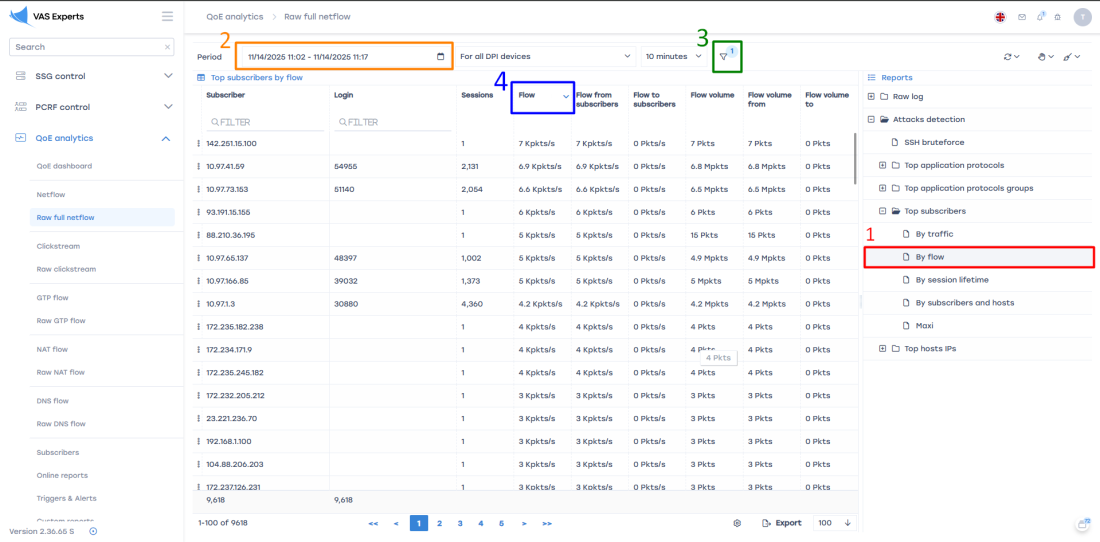
- Open the QoE Analytics report → Raw Full Netflow → Attack detection → Top subscribers → By flows:
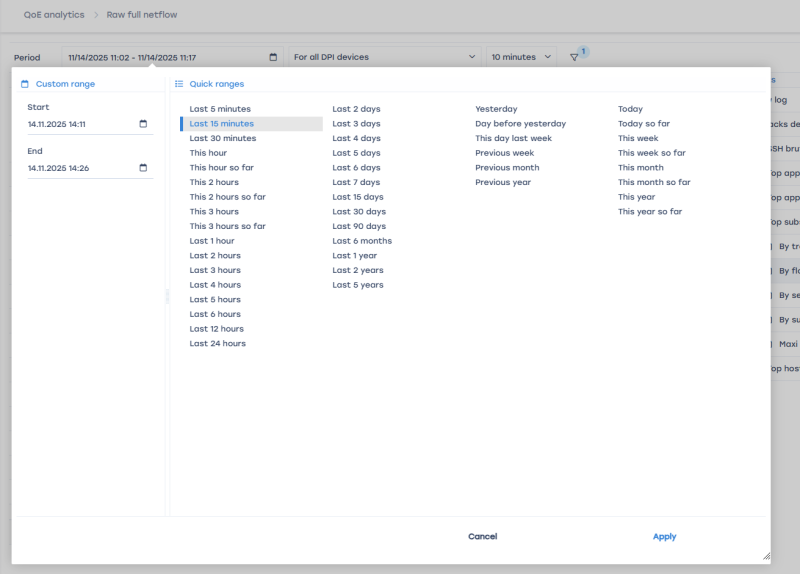
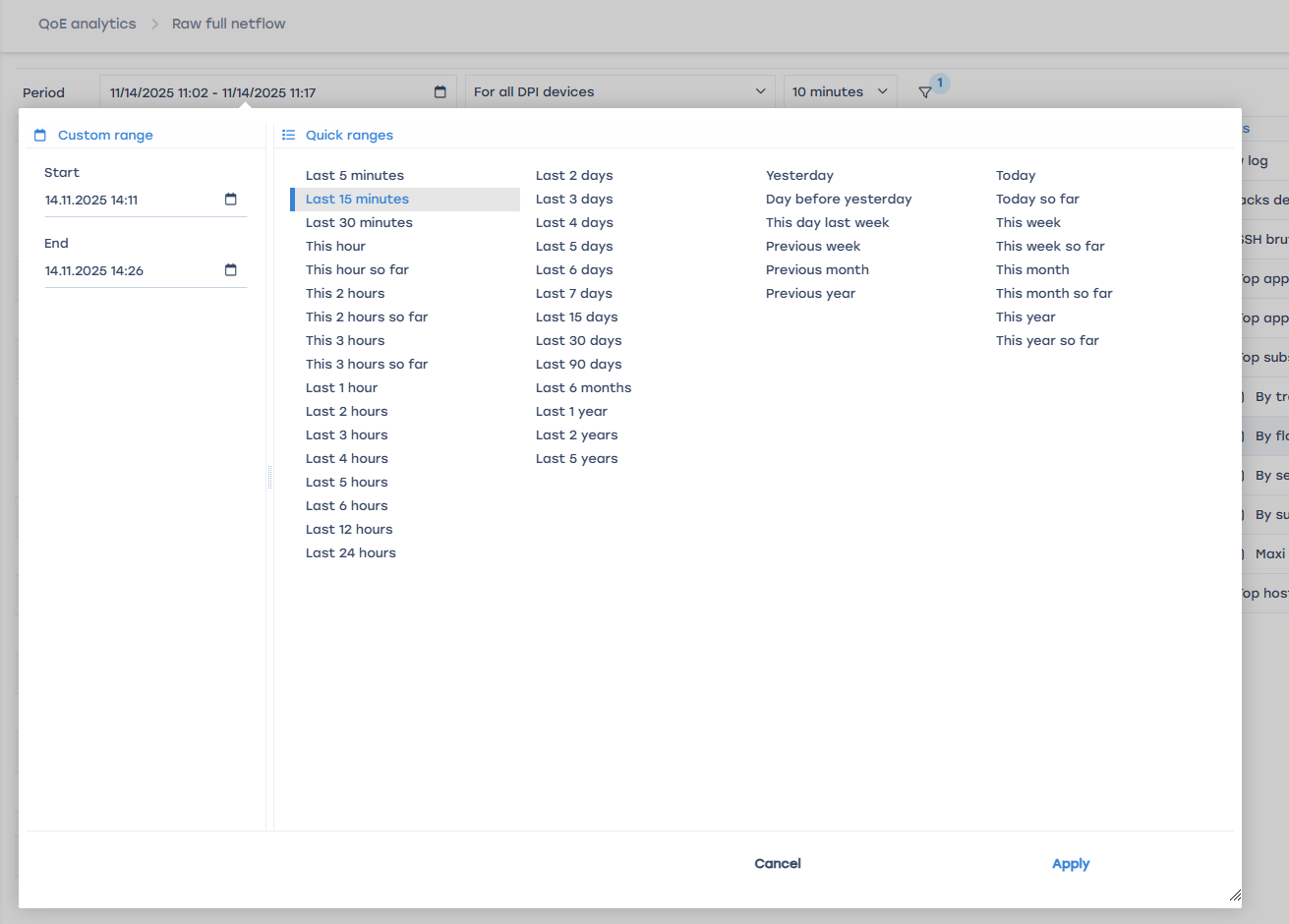
- Set the time range:
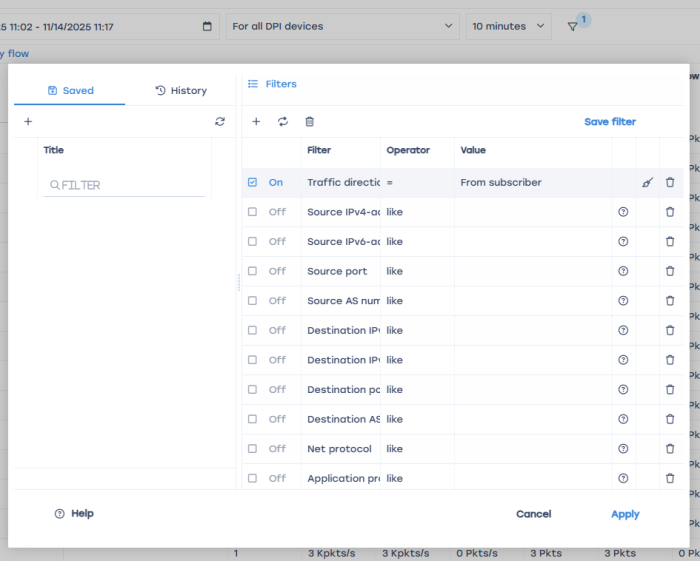
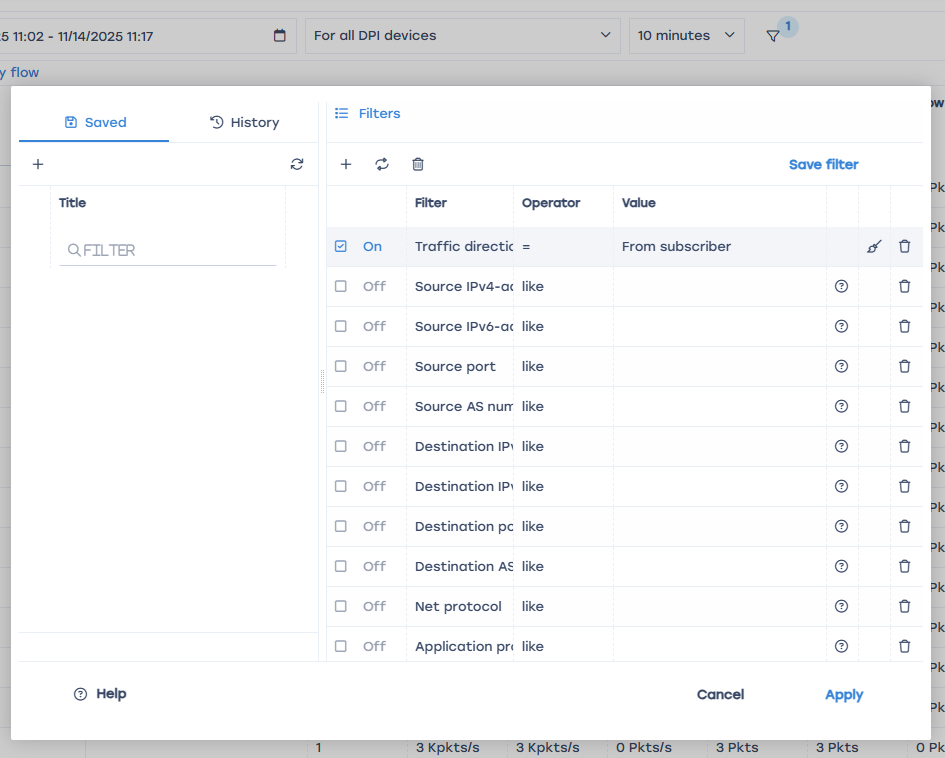
- Add a traffic direction filter – From subscriber:
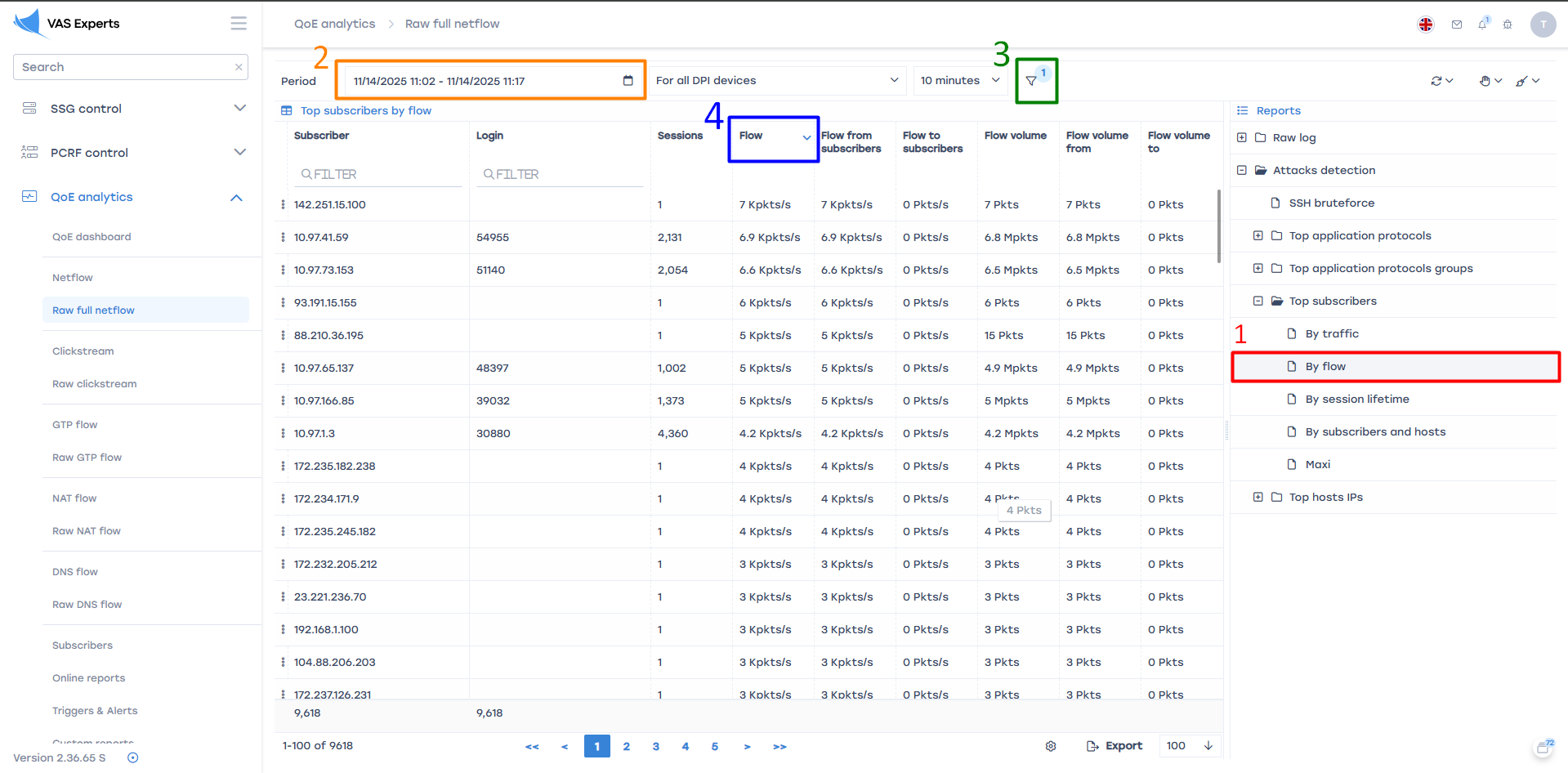
- Click the Flow column for convenient sorting
The detected subscriber source IP addresses must be added to a local AS (see section 3.1)
Searching for hosts with a high number of flows per second
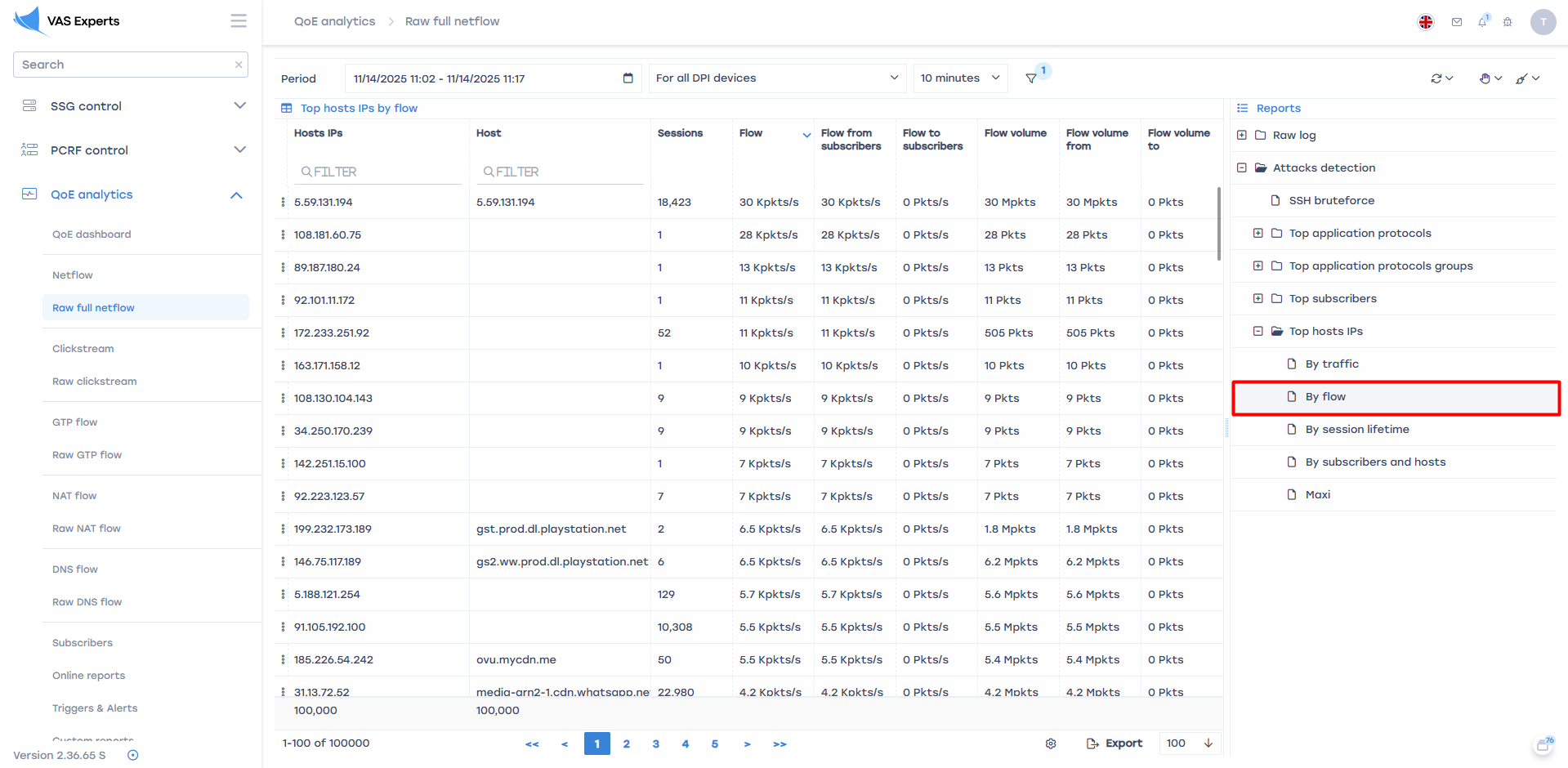
- Open the QoE Analytics report → Raw Full Netflow → Attack detection → Top host IP addresses → By flows:
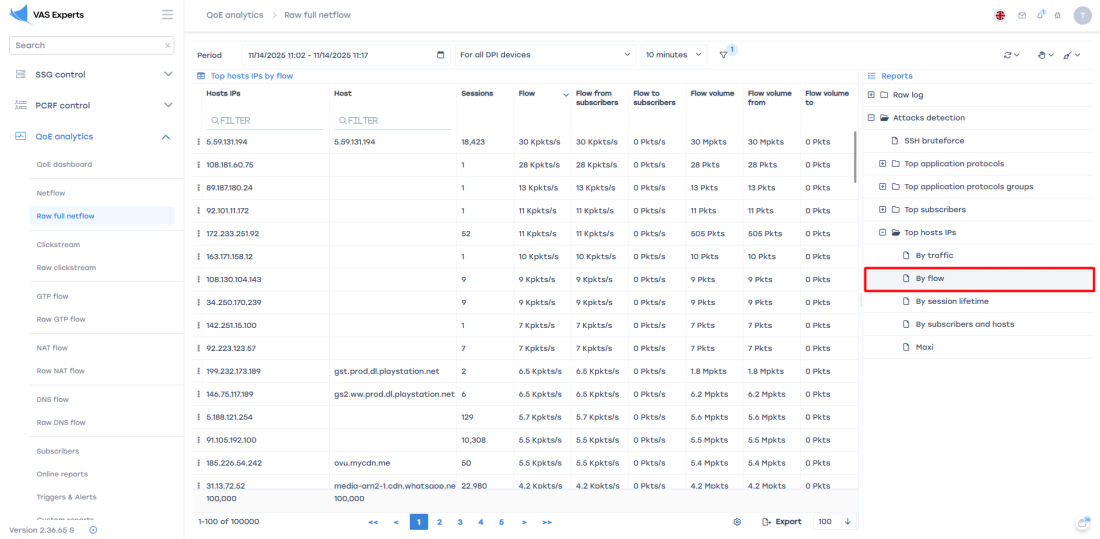
- Set the time range.
- Add a traffic direction filter – From subscriber.
- Click the Flow column for convenient sorting.
The detected host IP addresses must be added to a local AS (see section 3.1)
3. Blocking IPs by assigning them to an autonomous system
Creating a local AS (example for IPv4)
- Create a copy of /etc/dpi/aslocal.bin:
cp /etc/dpi/aslocal.bin /etc/dpi/aslocal.bin.backup
- Convert aslocal.bin to a TXT file using the bin2as utility:
bin2as /etc/dpi/aslocal.bin > /etc/dpi/list.txt
If the aslocal.bin file is missing in /etc/dpi/, create it:
vi /etc/dpi/list.txt
- Add entries to list.txt in the format (CIDR <space> ASN):
10.0.0.1/32 64525
172.16.0.0/12 64525
192.168.0.0/16 64525
Where
64525is the AS that will later need to be blocked. - Convert the CIDR–ASN list from TXT to BIN format using the as2bin utility:
cat /etc/dpi/list.txt | as2bin /etc/dpi/aslocal.bin
- Reload the service (hot parameter):
service fastdpi reload
Assigning a drop rule to the local AS
- Create a copy of the asnum.dscp file:
cp /etc/dpi/asnum.dscp /etc/dpi/asnum.dscp.backup
- Convert asnum.dscp to TXT using the dscp2as utility:
dscp2as /etc/dpi/asnum.dscp > /etc/dpi/asnum.txt
- Add entries in the format ASN <space> drop to the existing records in asnum.txt:
64525 drop
- Convert the TXT file back using the as2dscp utility:
cat /etc/dpi/asnum.txt | as2dscp /etc/dpi/asnum.dscp
- Reload the service (hot parameter):
service fastdpi reload
Was this information helpful?