


This is an old revision of the document!
DDoS and BotNet Detector Configuration Based on QoE
1. QoE Update
On the QoE server.
Update QoE to the latest version, stopping the receivers beforehand. Before starting the receivers, patch ClickHouse:
dnf --refresh install clickhouse-patched
Start the receivers.
2. GUI Update
On the GUI server.
Update GUI to the latest version. Connect GUI to VAS Cloud if it is not already connected. Grant the antiddos license option.
In the file /var/www/html/dpiui2/frontend/env.js, add the following option:
AppEnv.DDoSAttack_isVisible = 1;
3. Detector Installation
On the QoE server.
Install the mitigator package fastm_qoe on all nodes:
dnf install fastm_qoe
Switch the Python version:
dnf install -y python39 python39-devel -y
sudo update-alternatives --install /usr/bin/python3 python3 /usr/bin/python3.6 60
sudo update-alternatives --install /usr/bin/python3 python3 /usr/bin/python3.9 70
sudo update-alternatives --config python3
Select version 3.9 and verify:
python3 --version
4. Detector Configuration
On the QoE server.
On all nodes, or on selected ones:
- Edit the file
/var/fastm_qoe/etc/.env.
It should contain the following:ANALYZER=avg-based-z-score ANALYZER_RULES_KEY=avg-based-z-score-any IDLE_MODE=1 FORCE_MODE=0 DB_DROP_TABLES=1 FM_ATTACKS_METRICS_BY_SUBS_FILTER="and has_attack = 0" FM_ATTACKS_METRICS_BY_SUBS_LIMIT=1 FM_ATTACKS_METRICS_BY_SUBS_COLLAPSE=1 FM_ATTACKS_METRICS_BY_SUBS_DAY='day_'
- Update the database schema:
fastm-db-scheme
- Enable metrics collection.
In the file/var/qoestor/backend/.env, add:FM_FULLFLOW_HOOK_ENABLE=1
Collect metrics for several hours (preferably 24 hours).
Then edit/var/fastm_qoe/etc/.envagain and change two parameters:IDLE_MODE=0 DB_DROP_TABLES=0
This activates the detector.
5. Trigger Thresholds
In the file /var/fastm_qoe/lib/rules/config.json, edit the avg-based-z-score-any section as follows:
"avg-based-z-score-any": {
        "octets": { "th": 100, "weight": 0.1 },
        "octets_dropped": { "th": 1000, "weight": 0.3 },
        "packets": { "th": 100, "weight": 0.3 },
        "packets_dropped": { "th": 1000, "weight": 0.3 },
        "flows": { "th": 100, "weight": 0.4 },
        "sessions": { "th": 100, "weight": 0.4 },
        "duration": { "th": 100, "weight": 0.01 },
        "host_ips": { "th": 100, "weight": 0.3 },
        "protos": { "th": 100, "weight": 0.3 },
        "bits_sec": { "th": 100, "weight": 0.05 },
        "bits_dropped_sec": { "th": 1000, "weight": 0.05 },
        "packets_sec": { "th": 100, "weight": 0.05 },
        "packets_dropped_sec": { "th": 1000, "weight": 0.05 }
    },
6. Metrics Storage (DDoS Attack Logs)
In the GUI web interface, configure storage for raw and aggregated metrics, as well as raw and aggregated attack logs.
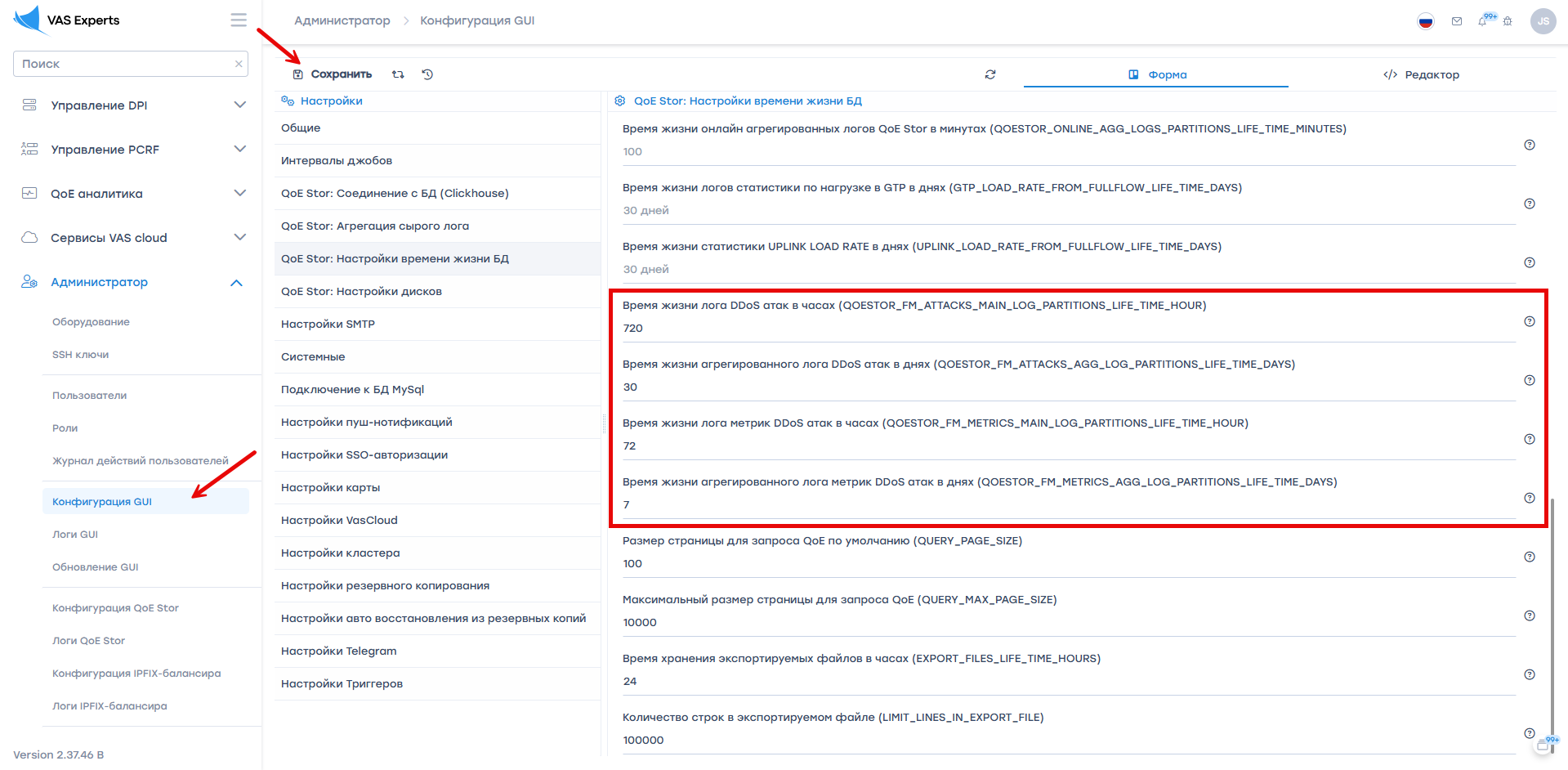
In Administrator → GUI Configuration → QoE Stor: Database Lifetime Settings, set the following parameters:
QOESTOR_FM_ATTACKS_MAIN_LOG_PARTITIONS_LIFE_TIME_HOUR=720QOESTOR_FM_ATTACKS_AGG_LOG_PARTITIONS_LIFE_TIME_DAYS=30QOESTOR_FM_METRICS_MAIN_LOG_PARTITIONS_LIFE_TIME_HOUR=72QOESTOR_FM_METRICS_AGG_LOG_PARTITIONS_LIFE_TIME_DAYS=7
7. Attack Analysis
Detected attacks can be analyzed in the DDoS Attacks section of QoE Analytics.
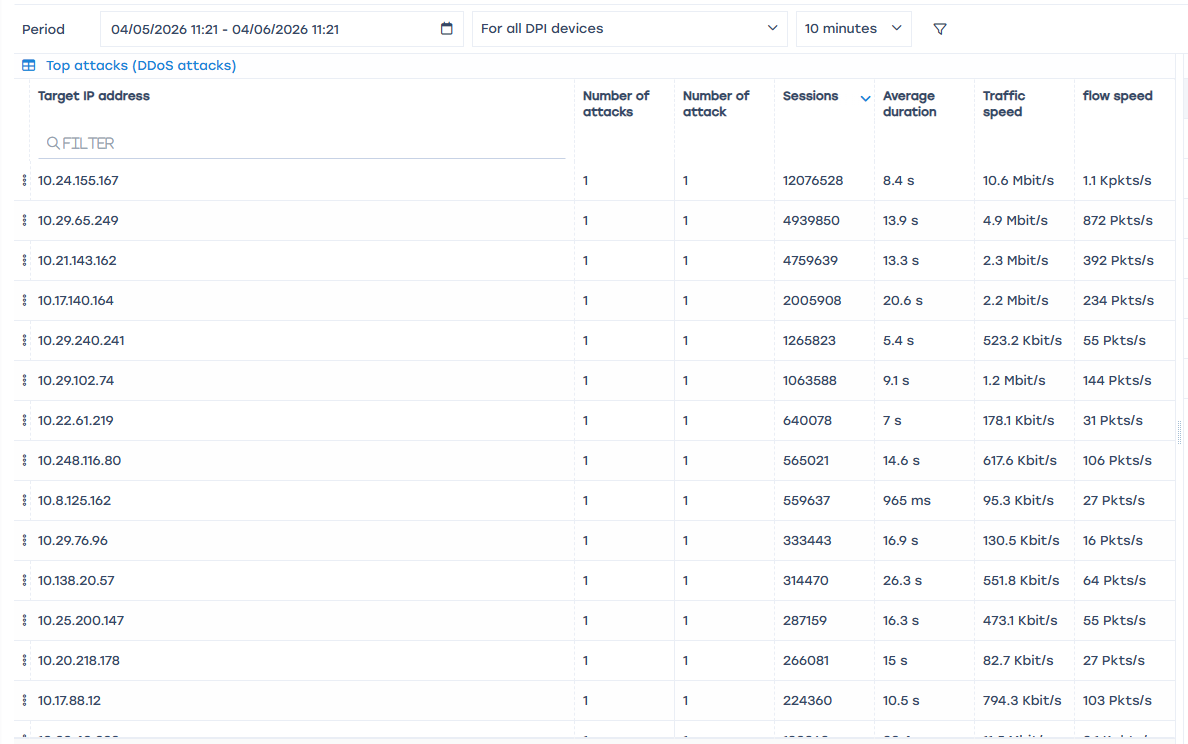
- Start with the “TOP Attacks” section for the last 24 hours.
Sort attacks by number of sessions and note several IPs with the highest session count.

- Review the “TOP Attacks by Protocols” section.
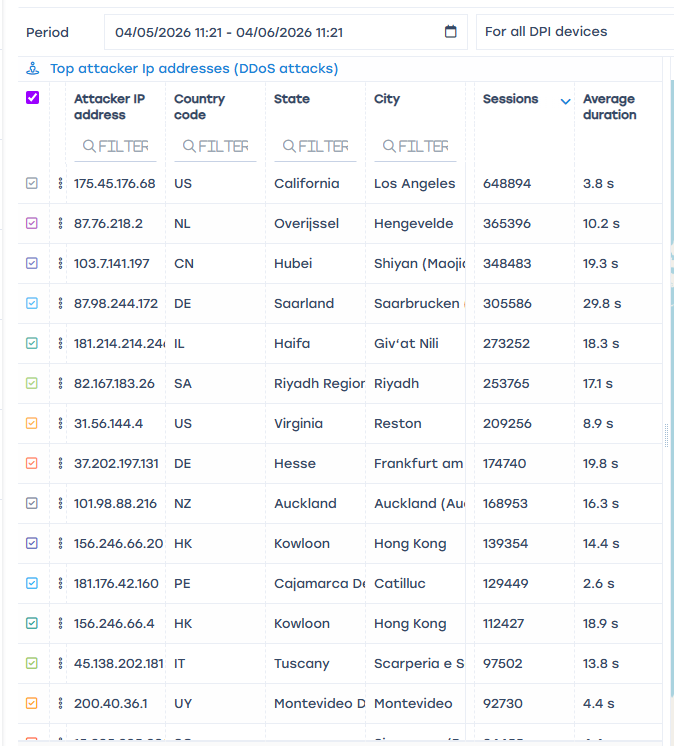
Also sort by number of sessions and note the relevant protocols. - Review the “TOP Attacking IP Addresses” section and record several IPs with the highest number of sessions.

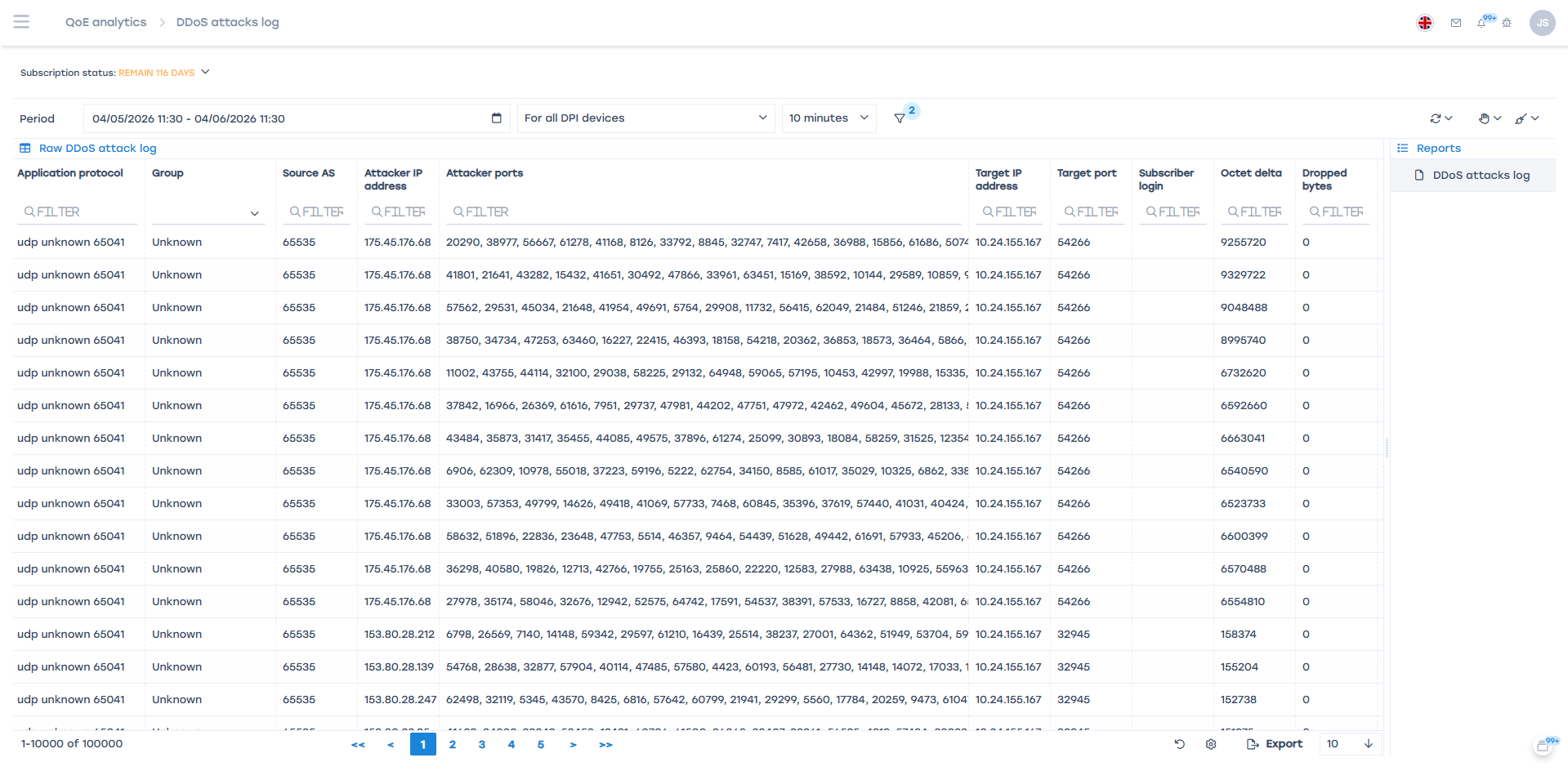
- Check the Attack Log section.
Apply filters for the previously selected subscribers and protocols.
This section provides detailed attack information to support decision-making.
For example, in the screenshot below, it is clearly visible that UDP port scanning is being performed against the same address. In this case, it is sufficient to place the attacking IP into a separate AS and apply a drop action.
Was this information helpful?